
|
OpenSolaris 2008.5 のインストール |
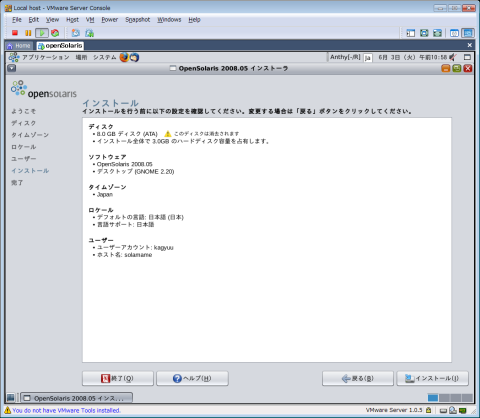
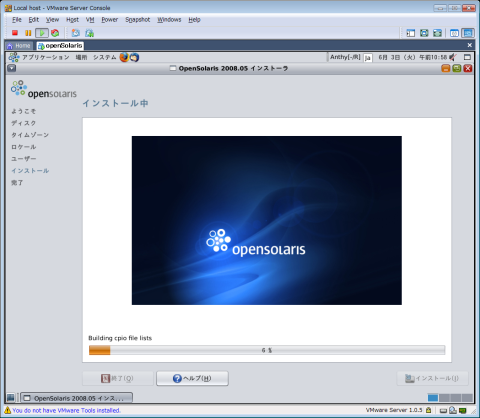
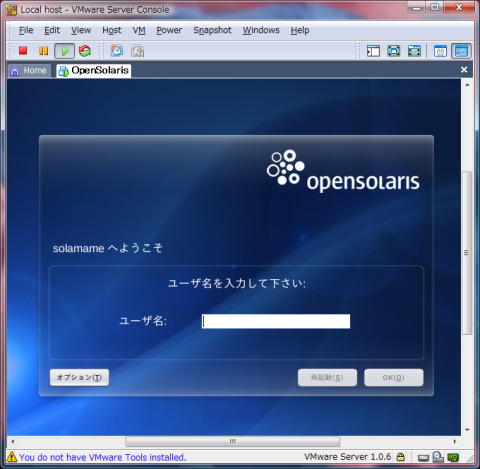
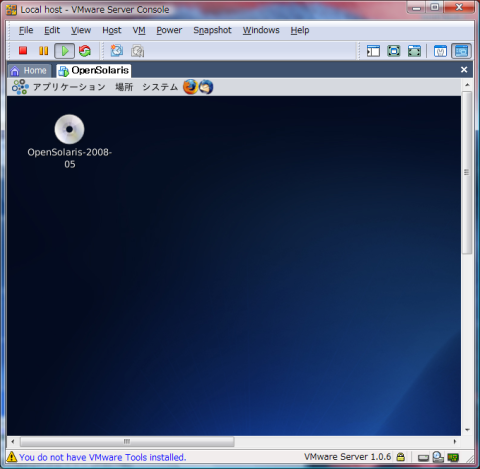
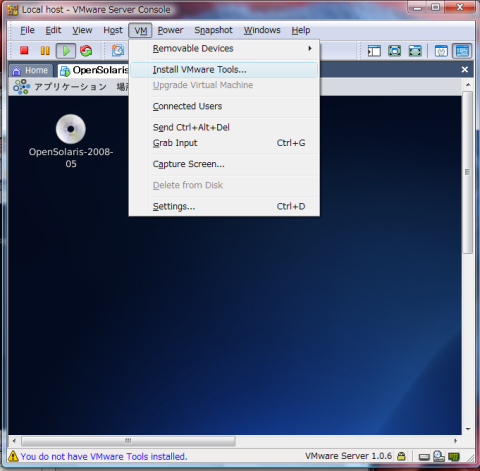
kagyuu@solamame:/media/VMware Tools$ su -
Password:
Sun Microsystems Inc.	SunOS 5.11	snv_86	January 2008
-bash-3.2# mkdir /tmp/vmware
-bash-3.2# cp /media/VMware\ Tools/vmware-solaris-tools.tar.gz /tmp/vmware/
-bash-3.2# cd /tmp/vmware
-bash-3.2# ls
vmware-solaris-tools.tar.gz
-bash-3.2# gunzip -d vmware-solaris-tools.tar.gz
-bash-3.2# tar -xf vmware-solaris-tools.tar
-bash-3.2# ls
vmware-solaris-tools.tar  vmware-tools-distrib
-bash-3.2# cd vmware-tools-distrib/
-bash-3.2# ls
FILES              bin                etc                lib
INSTALL            doc                installer          vmware-install.pl
-bash-3.2# ./vmware-install.pl
Creating a new installer database using the tar3 format.

Installing the content of the package.

In which directory do you want to install the binary files?
[/usr/bin]

What is the directory that contains the init directories (rc0.d/ to rc6.d/)?
[/etc]

What is the directory that contains the init scripts?
[/etc/init.d]

In which directory do you want to install the daemon files?
[/usr/sbin]

In which directory do you want to install the library files?
[/usr/lib/vmware-tools]

The path "/usr/lib/vmware-tools" does not exist currently. This program is
going to create it, including needed parent directories. Is this what you want?
[yes]

In which directory do you want to install the documentation files?
[/usr/share/doc/vmware-tools]

The path "/usr/share/doc/vmware-tools" does not exist currently. This program
is going to create it, including needed parent directories. Is this what you
want? [yes]

The installation of VMware Tools 1.0.6 build-91891 for Solaris completed
successfully. You can decide to remove this software from your system at any
time by invoking the following command: "/usr/bin/vmware-uninstall-tools.pl".

Before running VMware Tools for the first time, you need to configure it by
invoking the following command: "/usr/bin/vmware-config-tools.pl". Do you want
this program to invoke the command for you now? [yes]


Stopping VMware Tools services in the virtual machine:
-n    Guest operating system daemon:
-ne                                                                    done


Detected X.org version 1.3.


No drivers for X.org version: 1.3.


The configuration file /etc/X11/xorg.conf can not be found. Do you want to
create a new one? (yes/no) [yes]


Please choose one of the following display sizes (1 - 13):

[1]  "640x480"
[2]  "800x600"
[3]  "1024x768"
[4]  "1152x864"
[5]  "1280x800"
[6]  "1152x900"
[7]  "1280x1024"
[8]  "1376x1032"
[9]  "1400x1050"
[10]  "1680x1050"
[11]  "1600x1200"
[12]  "1920x1200"
[13]  "2364x1773"
Please enter a number between 1 and 13:

[3] 3

Starting VMware Tools services in the virtual machine:
-n    Switching to guest configuration:
-ne                                                                    done

-n    Guest vmxnet fast network device:
-ne                                                                    done

-n    Guest operating system daemon:
-ne                                                                    done


The configuration of VMware Tools 1.0.6 build-91891 for Solaris for this
running kernel completed successfully.

You must restart your X session before any mouse or graphics changes take
effect.

You can now run VMware Tools by invoking the following command:
"/usr/bin/vmware-toolbox" during an X session.

The installed vmxnet driver will be used for all vlance and vmxnet network
devices on this system.  Existing vlance devices will transition from the pcn
driver to the vmxnet driver on the next reconfiguration reboot and, as such,
their interface names will change from having a "pcn" prefix to a "vmxnet"
prefix.  You will need to change your network settings accordingly.

If you have configured a pcn interface, you should rename its files to use the
vmxnet device name to ensure the interface will be brought up properly upon
reboot.  For example, the commands
  # mv /etc/hostname.pcn0 /etc/hostname.vmxnet0
  # mv /etc/hostname6.pcn0 /etc/hostname6.vmxnet0
  # mv /etc/dhcp.pcn0 /etc/dhcp.vmxnet0
will cause the Solaris Service Management Facility to bring up the first vmxnet
interface using the configuration of your current pcn0 interface.  Note that
the hostname6.pcn0 and dhcp.pcn0 files are optional.

Enjoy,

--the VMware team
    50 Section "Monitor"
    51     Identifier      "vmware"
    52     VendorName      "VMware, Inc"
    53     HorizSync 1-10000
    54     VertRefresh 1-10000
    55
    56 #    ModeLine "640x480" 100 640 700 800 900 480 500 600 700
    57 #    ModeLine "1280x480" 100 1280 1300 1400 1500 480 500 600 700
    58 #    ModeLine "640x960" 100 640 700 800 900 960 1000 1100 1200
    59 #    ModeLine "800x600" 100 800 900 1000 1100 600 700 800 900
    60 #    ModeLine "1600x600" 100 1600 1700 1800 1900 600 700 800 900
    61 #    ModeLine "800x1200" 100 800 900 1000 1100 1200 1300 1400 1500
    62     ModeLine "1024x768" 100 1024 1100 1200 1300 768 800 900 1000
    63 #    ModeLine "2048x768" 100 2048 2100 2200 2300 768 800 900 1000
    64 #    ModeLine "1024x1536" 100 1024 1100 1200 1300 1536 1600 1700 1800
    65 #    ModeLine "1152x864" 100 1152 1200 1300 1400 864 900 1000 1100
    66 #    ModeLine "2304x864" 100 2304 2400 2500 2600 864 900 1000 1100
    67 #    ModeLine "1152x1728" 100 1152 1200 1300 1400 1728 1800 1900 2000
    68 #    ModeLine "1280x1024" 100 1280 1300 1400 1500 1024 1100 1200 1300
    69 #    ModeLine "2560x1024" 100 2560 2600 2700 2800 1024 1100 1200 1300
    70 #    ModeLine "1280x2048" 100 1280 1300 1400 1500 2048 2100 2200 2300
    71 #    ModeLine "1600x1200" 100 1600 1700 1800 1900 1200 1300 1400 1500
    72 #    ModeLine "3200x1200" 100 3200 3300 3400 3500 1200 1300 1400 1500
    73 #    ModeLine "1600x2400" 100 1600 1700 1800 1900 2400 2500 2600 2700
    74 #    ModeLine "1920x1400" 100 1920 2000 2100 2200 1200 1300 1400 1500
    75 #    ModeLine "3940x1400" 100 1920 2000 2100 2200 1200 1300 1400 1500
    76 #    ModeLine "1920x2800" 100 1920 2000 2100 2200 1200 1300 1400 1500
    77 #    ModeLine "1152x900" 100 1152 1200 1300 1400 900 1000 1100 1200
    78 #    ModeLine "1280x800" 100 1280 1300 1400 1500 800 900 1000 1100
    79 #    ModeLine "1376x1032" 100 1376 1400 1500 1600 1032 1100 1200 1300
    80 #    ModeLine "1400x1050" 100 1400 1500 1600 1700 1050 1100 1200 1300
    81 #    ModeLine "1680x1050" 100 1680 1700 1800 1900 1050 1100 1200 1300
    82 #    ModeLine "1920x1200" 100 1920 2000 2100 2200 1200 1300 1400 1500
    83 #    ModeLine "2364x1773" 100 2364 2400 2500 2600 1773 1800 1900 2000
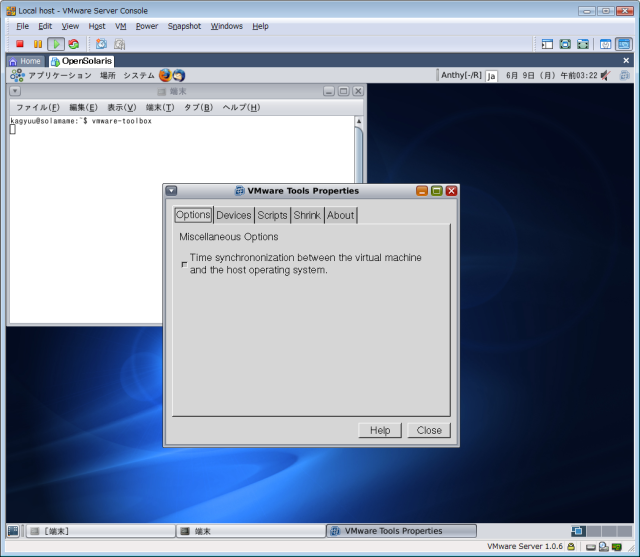
84 EndSectionvmware-toolboxを起動すればよい
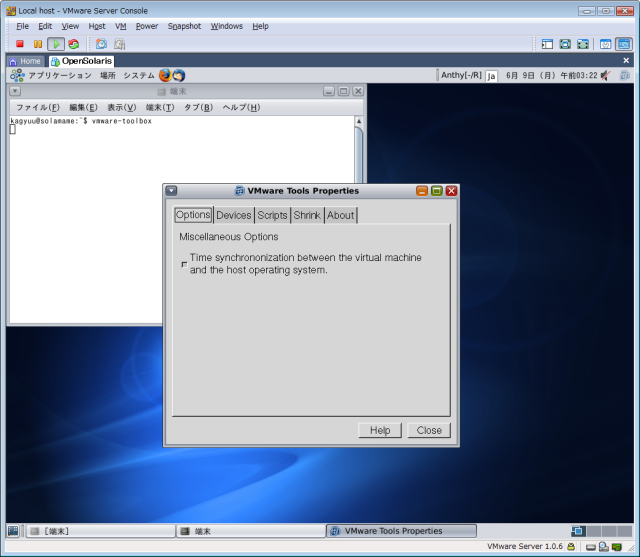
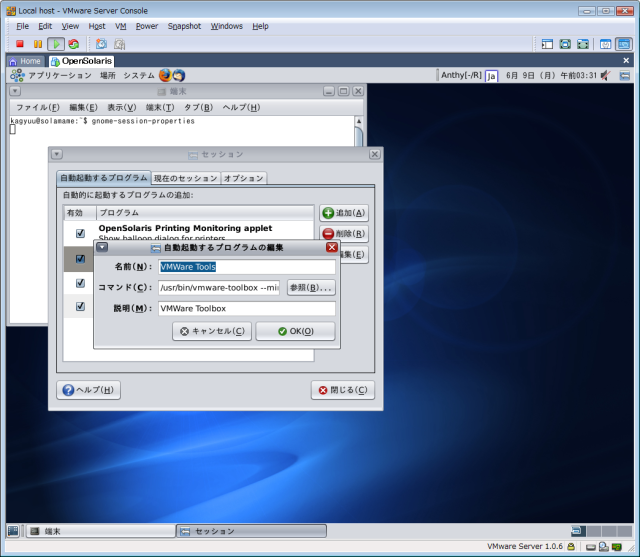
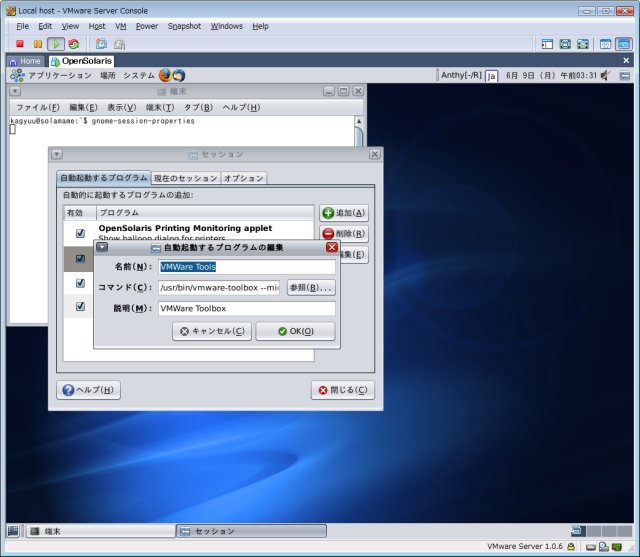
vmware-toolbox --minimizeが自動起動するようにすればよい
kagyuu@solamame:~$ su -
Password:
Sun Microsystems Inc.	SunOS 5.11	snv_86	January 2008
-bash-3.2# vmware-toolbox

Gtk-WARNING **: cannot open display:
kagyuu@solamame:~$ xhost +
access control disabled, clients can connect from any host
kagyuu@solamame:~$ su -
Password:
Sun Microsystems Inc.	SunOS 5.11	snv_86	January 2008
-bash-3.2# export DISPLAY=:0
-bash-3.2# vmware-toolbox
  # mv /etc/hostname.pcn0 /etc/hostname.vmxnet0
  # mv /etc/hostname6.pcn0 /etc/hostname6.vmxnet0
  # mv /etc/dhcp.pcn0 /etc/dhcp.vmxnet0
をする。
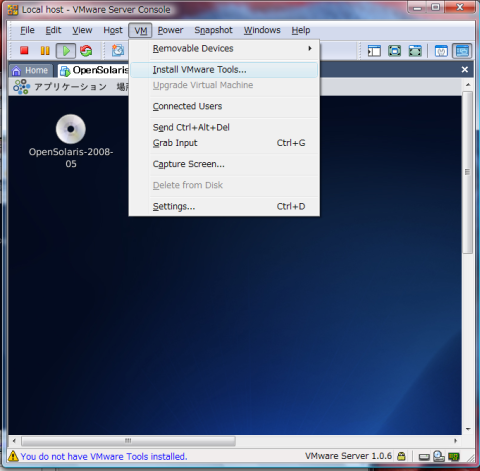 vmtool3.png 2528件
[詳細]
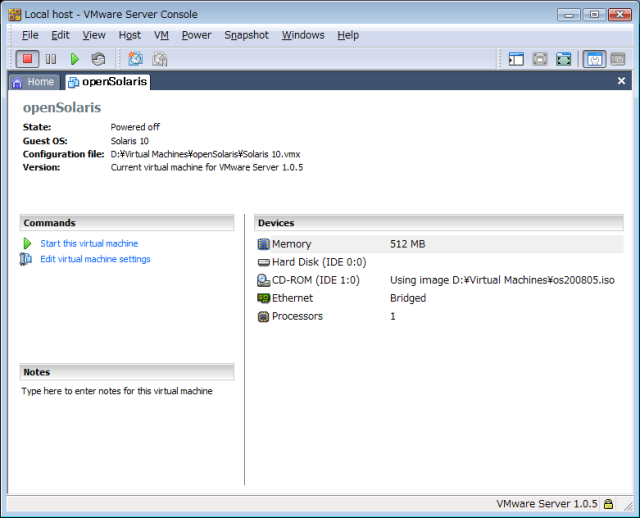 livecd.png 2554件
[詳細]
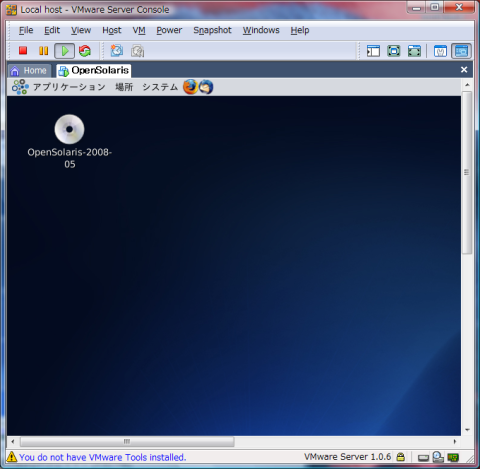 vmtool2.png 2465件
[詳細]
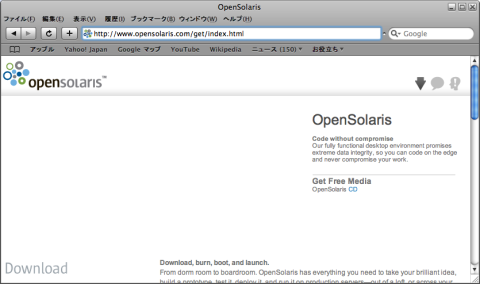 opensolaris_com.png 2330件
[詳細]
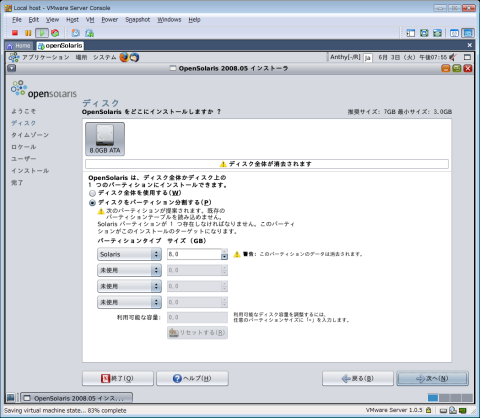 inst2.png 2458件
[詳細]
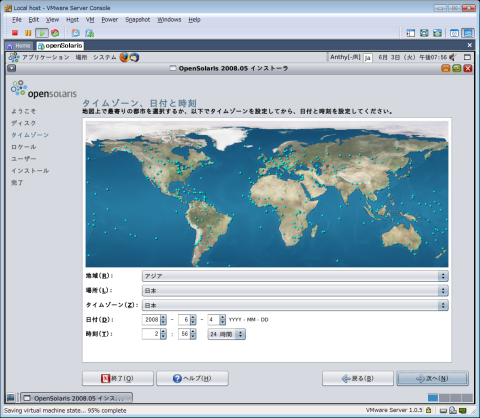 inst3.png 2388件
[詳細]
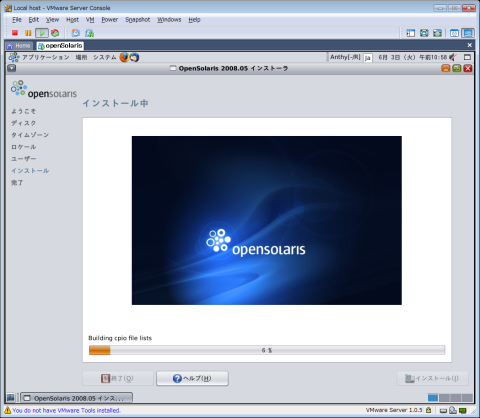 inst7.png 2276件
[詳細]
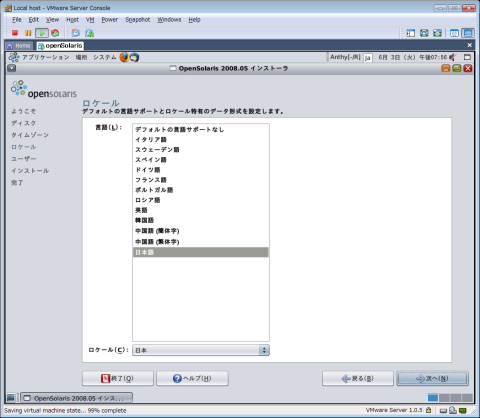 inst4.png 2309件
[詳細]
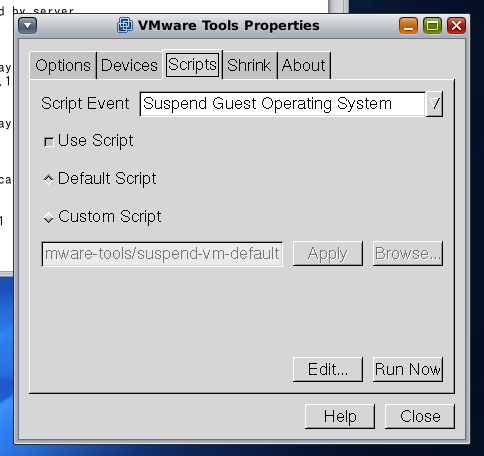 runvmtool3.png 2442件
[詳細]
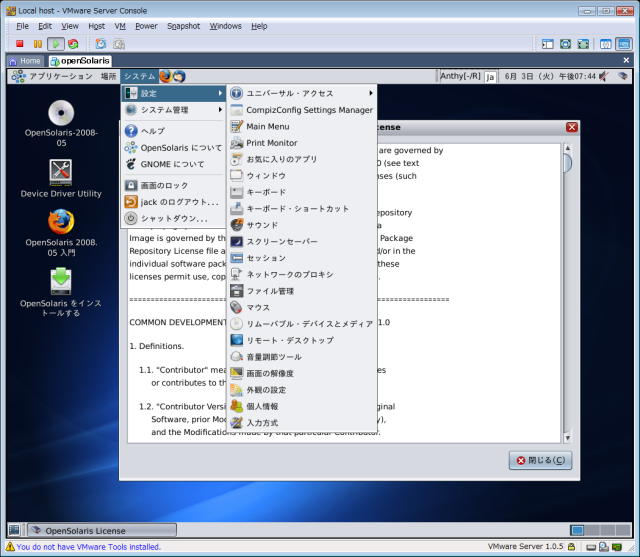 livecd2.png 2471件
[詳細]
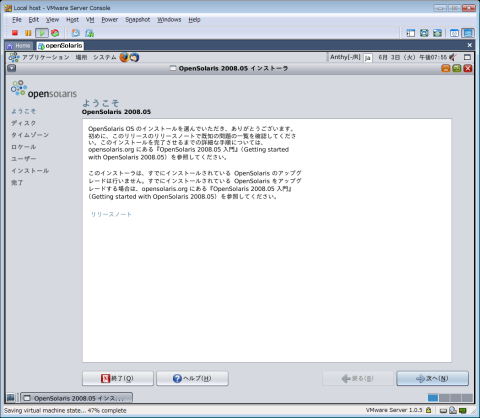 inst1.png 2479件
[詳細]
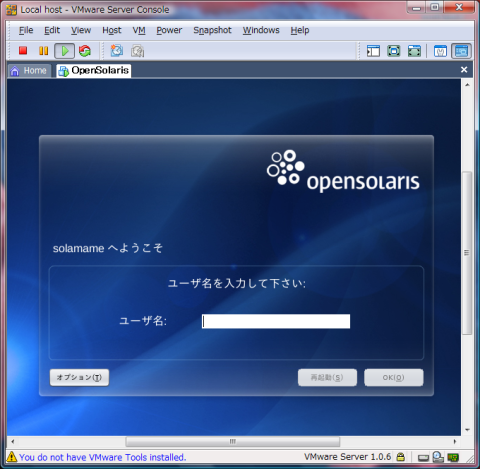 vmtool1.png 2540件
[詳細]
 runvmtool1.png 2467件
[詳細]
 runvmtool2.png 2333件
[詳細]
 inst5.png 2431件
[詳細]
 inst6.png 2260件
[詳細]